Figma Plugin
PNG to SVG
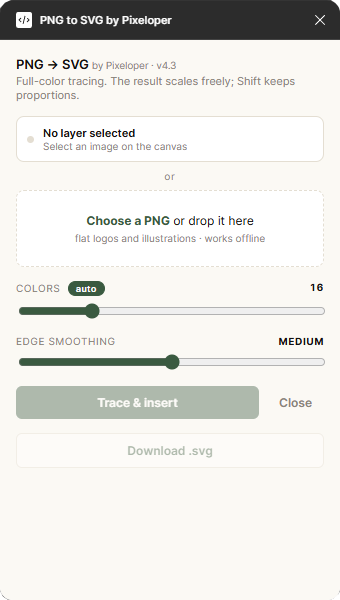
No need for other editing software, convert your images to SVG directly in Figma with this plugin. Plus, it lets you download your SVG to use on your website or app, and best of all, it's free, without usage limits.
Figma Plugin
No need for other editing software, convert your images to SVG directly in Figma with this plugin. Plus, it lets you download your SVG to use on your website or app, and best of all, it's free, without usage limits.
Why it exists
The client sends you the logo as a PNG. You ask for the SVG, obviously — but while they get it, you don't stop: you convert it yourself and keep moving forward with the project.
And here's where it gets interesting. Often the client doesn't have the SVG or know how to get it, and ends up asking you for it. Then you have two choices: charge it as an extra, or throw it in as added value to look like a hero. Both are good for you, and either takes thirty seconds with this plugin.
Convert and download without leaving Figma. If you use your imagination, there's some extra cash right there ;)
Suggested workflow
It works best on flat-color artwork: logos, icons, illustrations. It is not a photo tracer, and it does not pretend to be one.
Import or pick the image right on the Figma canvas. The plugin reads it from there.
Curves come out smooth and straight lines stay straight, without wobbly edges or pixel stairs. Flat colors stay flat.
Once converted, you can change colors, move parts, and tweak it like any Figma shape.
You can download the file to use on the website or app you're developing, without needing any other software.
What to expect
You don't spend AI credits or pay per use. Convert as many times as you want.